

Last Updated: October 28, 2026
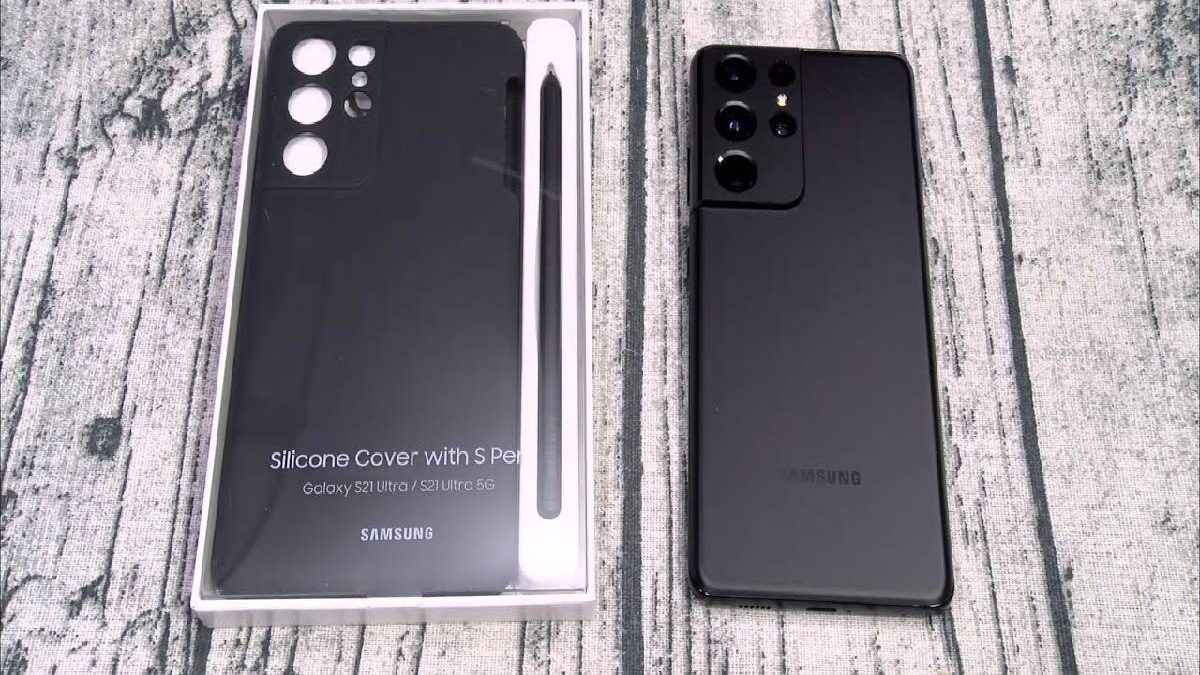
Samsung’s Galaxy S21 lineup introduced several notable features, including 5G connectivity, improved camera capabilities, and software enhancements. The Samsung Galaxy S21 Ultra was particularly distinctive because it brought S Pen stylus support to Samsung’s Galaxy S series.
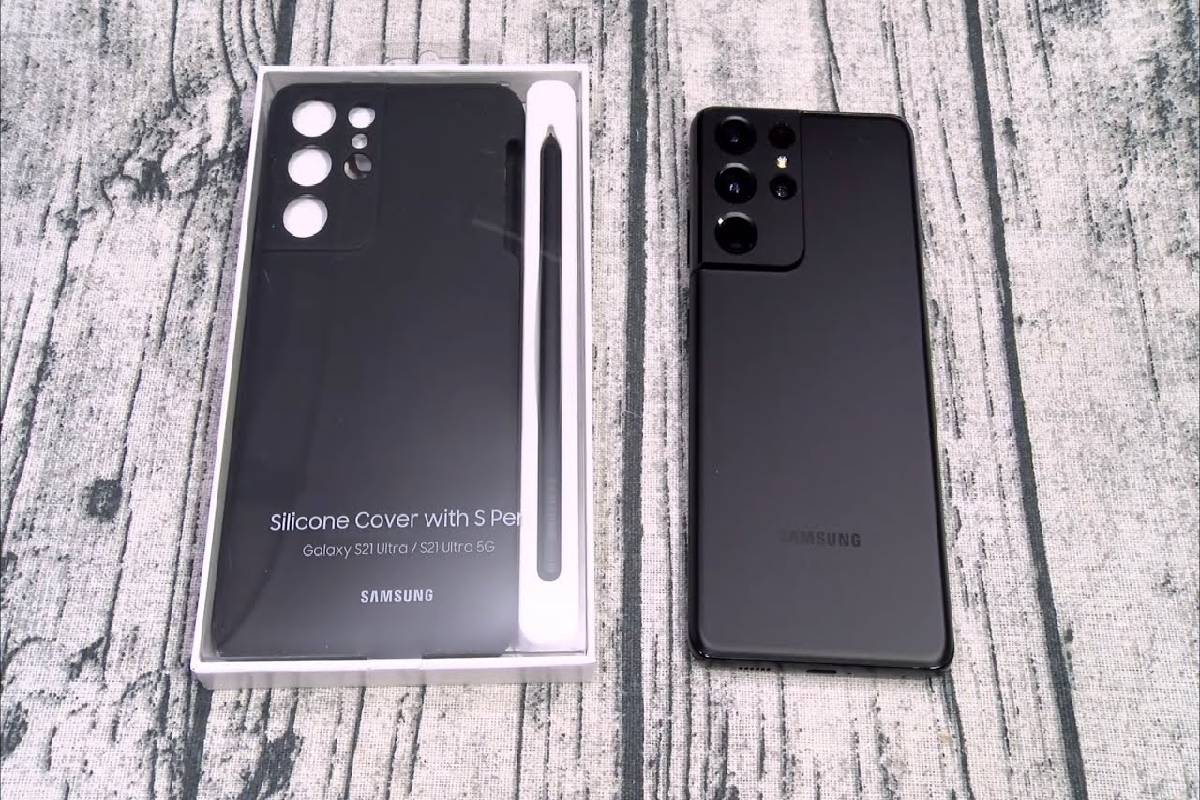
With a compatible S Pen, users can write notes, draw, select content, and interact with the phone’s display. However, the Galaxy S21 Ultra does not have a built-in S Pen storage slot, so choosing a compatible case with an S Pen holder can make the stylus easier to carry.
Although the Galaxy S21 Ultra launched in 2021, it remains an option in the second-hand and refurbished smartphone market. Buyers in 2026 should consider its condition, software support, battery health, and accessory compatibility before purchasing one.
Table of Contents
Samsung Galaxy S21 Ultra Case With S Pen: Why Choose One?
The Galaxy S21 Ultra supports compatible S Pens, but unlike the Galaxy Note series, it does not include a dedicated slot for storing the stylus inside the phone.
An S Pen-compatible case addresses this limitation by providing a holder for carrying the stylus. Depending on the case design, it may also offer additional protection against scratches, everyday impacts, and accidental drops.
When choosing a case, consider these features:
- S Pen holder: Keeps the stylus accessible and reduces the risk of losing it.
- Device protection: Look for raised edges around the screen and camera module.
- Comfortable grip: A textured surface can make the large phone easier to hold.
- Precise cutouts: Ensure the buttons, charging port, speakers, and microphones remain accessible.
- Durable construction: Choose materials that can withstand regular use.
- Practical design: Check whether the case adds excessive thickness or weight.
Before buying, confirm that the case is specifically designed for the Galaxy S21 Ultra. Cases made for other Galaxy S21 models may not fit correctly because their dimensions and camera layouts differ.
Software and Features of the Galaxy S21 Ultra
The Galaxy S21 series originally launched with Android 11 and Samsung’s One UI 3.1 interface. Subsequent software updates introduced additional features and improvements, depending on the device and region.
The original S21 series included features such as notification controls, customisation options, and video-call effects. However, the exact interface and available settings depend on the installed software version.
Because the Galaxy S21 Ultra is an older smartphone, check Samsung’s official support information and the phone’s software update status before purchasing it in 2026.
How to Turn Off the Samsung Galaxy S21 Ultra
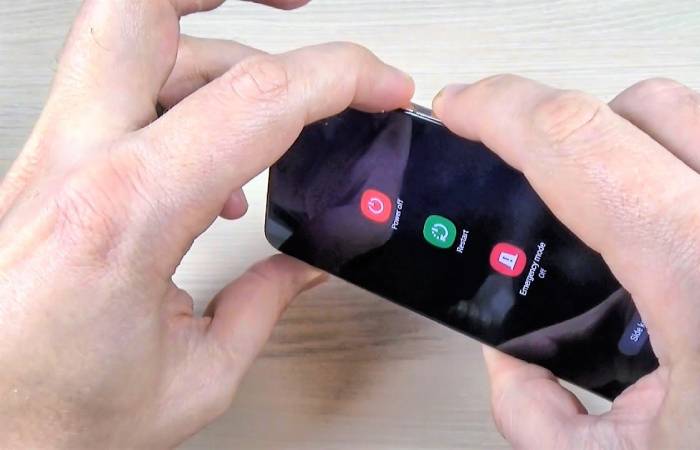
On the Galaxy S21 Ultra, pressing and holding the side key may launch Bixby rather than display the power menu, depending on the configured side-key settings.
There are several ways to turn off or restart the phone.
Method 1: Use the Quick Settings Panel
- Swipe down from the top of the screen to open the notification panel.
- Swipe down again if necessary to expand Quick Settings.
- Tap the power icon near the top of the screen.
- Select Power off or Restart.
- Confirm your selection if prompted.
Method 2: Use the Side Key and Volume Button
- Press and hold the side key and volume-down button simultaneously.
- Wait for the power menu to appear.
- Select Power off or Restart.
Method 3: Change the Side-Key Settings
If you want the side key to open the power menu when held:
- Open Settings.
- Select Advanced features.
- Tap Side button or Side key, depending on your software version.
- Find the press-and-hold option.
- Select Power off menu, if available.
The exact labels may vary with software updates.
S Pen Support on the Samsung Galaxy S21 Ultra
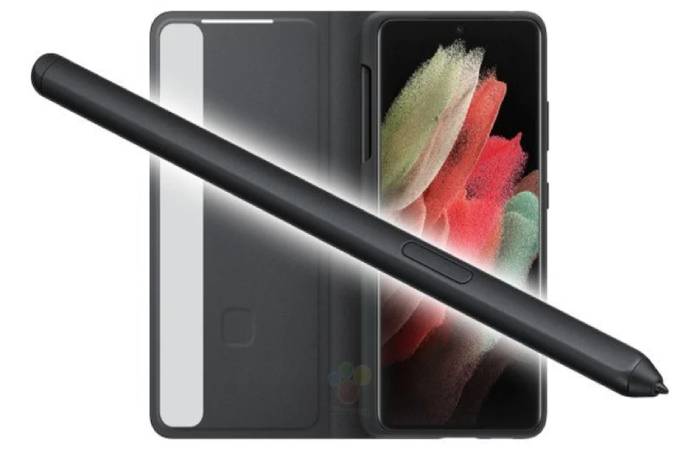
One of the Galaxy S21 Ultra’s standout features is its support for compatible S Pens. This allows users to write or draw directly on the display without relying exclusively on finger input.
The S Pen can be useful for:
- Taking handwritten notes.
- Drawing and sketching.
- Selecting text or parts of the screen.
- Annotating screenshots.
- Writing reminders.
- Working with supported productivity applications.
How to Use an S Pen
- Confirm that you have a compatible S Pen.
- Remove the stylus from its holder.
- Bring the tip close to the display or touch it to the screen.
- Open a compatible note-taking or drawing application.
- Write, draw, or select content as required.
When the phone recognises a compatible S Pen, a pointer may appear as the stylus hovers over the display. Depending on the software and pen, additional tools may be available.
The Galaxy S21 Ultra supports compatible S Pens from selected Galaxy Note and Galaxy Tab S devices. However, not every Samsung stylus offers the same functionality. In particular, Bluetooth-dependent Air Actions are not supported by every S Pen compatible with the S21 Ultra.
Important: The Galaxy S21 Ultra does not have the internal S Pen storage or charging arrangement found in some later Galaxy Ultra models. A case with a dedicated stylus holder is therefore a practical accessory.
How to Take Better Screenshots on the Galaxy S21 Ultra
The Galaxy S21 Ultra offers several ways to capture screen content. In addition to standard screenshots, Samsung’s Edge panels can provide shortcuts to tools such as Smart Select, depending on the installed software and settings.
Method 1: Use the Button Combination
- Open the screen you want to capture.
- Press the side key and volume-down button briefly at the same time.
- Release both buttons.
- Use the screenshot toolbar to edit, share, or save the image if it appears.
Avoid holding the buttons for too long, as this may open a different menu.
Method 2: Use Smart Select
Smart Select lets you capture a selected area of the display instead of taking a screenshot of the entire screen.
To access it, first check whether Edge panels are enabled:
- Open Settings.
- Select Display.
- Tap Edge panels, if available.
- Enable the feature and open the Edge panel handle.
- Select Smart Select, if it appears in the available panels.
- Choose an available selection shape and capture the desired area.
Depending on the software version, Smart Select may also offer options for capturing animated content or pinning a selected portion of the screen.
If the feature is unavailable, use the standard screenshot method or check your device’s current software settings.
Is the Samsung Galaxy S21 Ultra Worth Buying in 2026?
The Galaxy S21 Ultra can still appeal to users who want a large display, versatile cameras, and S Pen compatibility without buying a newer flagship. However, its age makes careful evaluation particularly important.
Before buying a used or refurbished device, check:
- Battery health: Look for rapid battery drain or unexpected shutdowns.
- Display condition: Inspect for scratches, burn-in, dead pixels, and touch-screen problems.
- Camera performance: Test all available rear cameras and the front camera.
- Software support: Confirm the device’s current security update status.
- Network compatibility: Check local 4G and 5G band support.
- S Pen compatibility: Test the stylus and its supported functions.
- Charging and ports: Ensure that charging works reliably.
- IMEI and ownership: Buy from a reputable seller and verify the device’s status.
Because the phone is an older generation, do not assume that every model still receives regular security updates. Compare its current condition and price with newer alternatives before deciding.
Other Technology Accessories to Explore
Smartphones, gaming accessories, and other consumer electronics serve different purposes, but compatibility remains important when choosing any device or accessory.
For example, if you are interested in older gaming hardware and connectivity, read about the wireless networking adaptor for Xbox 360. This guide provides additional context for readers exploring accessories designed to extend the functionality of existing devices.
You can also explore GOC Technology for more technology-related articles and product information.
Frequently Asked Questions
Does the Galaxy S21 Ultra support the S Pen?
Yes. The Galaxy S21 Ultra supports compatible S Pens for handwriting, drawing, and other supported on-screen functions.
Does the Galaxy S21 Ultra come with a built-in S Pen slot?
No. The phone does not have a built-in storage slot for the stylus. A compatible case with an S Pen holder makes carrying it more convenient.
Can I use any Samsung S Pen with the S21 Ultra?
Not every S Pen offers identical compatibility or features. Check that the stylus supports the Galaxy S21 Ultra before buying it, particularly if you want advanced functions.
How do I turn off the Galaxy S21 Ultra?
Open Quick Settings and tap the power icon, or press and hold the side key and volume-down button together to display the power menu.
Does the Galaxy S21 Ultra support Smart Select?
Smart Select is available through supported Samsung software features, including Edge panels on compatible configurations. Its availability and options may vary by installed software version.
Is the Galaxy S21 Ultra still a good phone in 2026?
It may be a suitable choice if the price, battery condition, camera performance, and software status meet your needs. Because it is an older model, verify security updates and overall condition before purchasing.
Conclusion
The Samsung Galaxy S21 Ultra remains notable for bringing S Pen support to Samsung’s Galaxy S lineup. A compatible case with an S Pen holder makes the stylus easier to carry while providing additional protection for the phone.
The device also offers practical features such as multiple screenshot options, customisable side-key controls, and a versatile camera system. However, buyers in 2026 should pay close attention to battery condition, software support, and accessory compatibility.
Whether you already own the Galaxy S21 Ultra or are considering buying one second-hand, selecting the right case and compatible accessories can help you get more practical use from the device.